How Browser Agents Read the Web
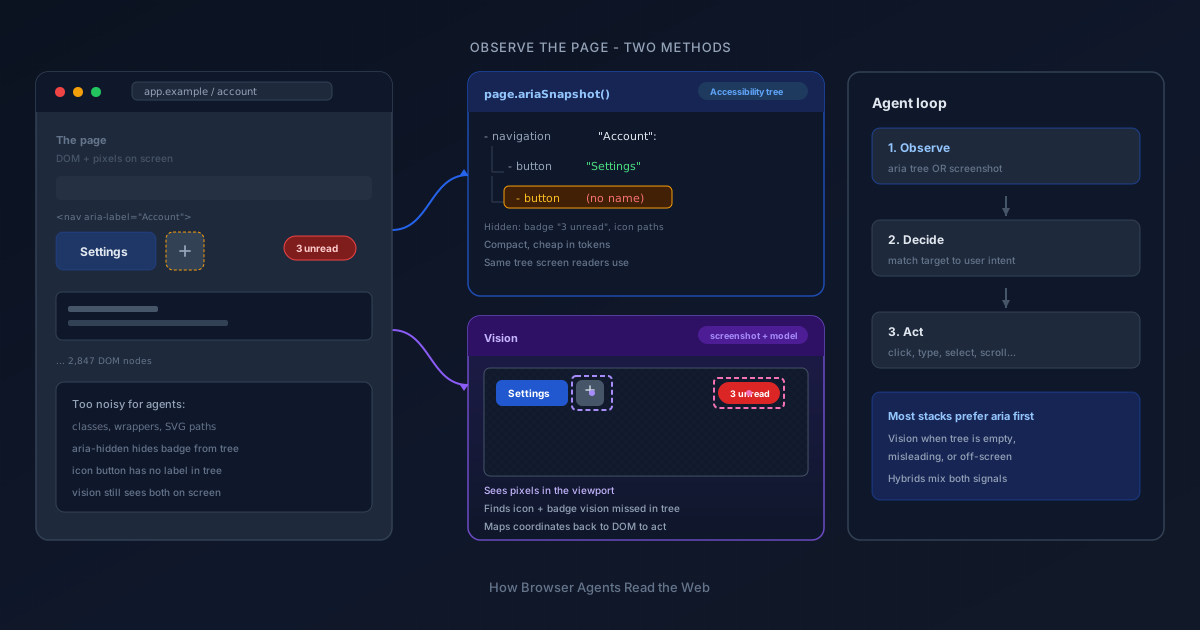
How do browser agents work?
Browser automation boils down to two primitives: observe the page, then act on what you observed (click, type, select, and so on). Everything an agent does is some combination of those two steps in a loop.
Observing the page
Reading the entire page from raw HTML is expensive. A real DOM can carry thousands of nodes—wrapper divs, utility classes, inline SVG paths, analytics attributes—and most of that noise never helps you pick the right control. Agents need a smaller view of the page that still describes what a user can do.
Two common approaches:
- Accessibility tree —
page.ariaSnapshot()returns a compact tree built from the same semantics screen readers use (roles, names, states). You observe structure and labels, not every tag and class. - Vision — capture a screenshot, have a model find the element from a natural-language description, then map pixel coordinates back to a DOM node for the action.
Most agent stacks prefer the accessibility tree for observation because it is smaller, cheaper in tokens, and aligned with how assistive tech already interprets the page. Vision is a fallback when the tree is empty or misleading (canvas UIs, unlabeled icons, custom widgets with no accessible name).
Raw HTML vs the accessibility tree
The same control can look very different depending on which representation you read.
A save button in the DOM might include layout wrappers, styling classes, and an inline icon:
<div
  class="flex items-center gap-2 p-4 bg-gray-50 rounded-lg shadow-sm"
  data-testid="toolbar"
>
  <button
    type="button"
    class="btn btn-primary inline-flex items-center justify-center"
    aria-label="Save"
  >
    <svg class="h-4 w-4" viewBox="0 0 24 24" aria-hidden="true">
      <path fill="currentColor" d="M5 13l4 4L19 7" />
    </svg>
  </button>
</div>
page.ariaSnapshot() collapses that markup into what matters for interaction and for a screen reader:
- toolbar:
  - button "Save"
The agent does not need the SVG path data or Tailwind classes to know there is a Save button. The accessibility tree surfaces the actionable node and its name; the HTML carries everything else. That gap is exactly where many web UIs start to break down for agents—and for screen readers—when labels, roles, or native controls are missing or wrong.
What's wrong with these approaches?
Both observation strategies assume the page exposes enough signal. In practice, the accessibility tree and vision each fail in predictable ways.
The accessibility tree
The tree is not a mirror of the DOM. It is a filtered view: only nodes with meaningful roles, names, or states show up. That is great for token efficiency when the page is mostly chrome and controls—and terrible when the visible UI and the tree disagree, or when the tree itself is huge.
Dense data pages flip the cost model. Financial dashboards, order books, and large <table> / grid UIs often expose every row and cell in the accessibility tree because that is correct for screen readers: each price, ticker, and balance needs a name. A single page.ariaSnapshot() can balloon to thousands of lines—one node per cell—while the agent only needed “sort by P/E” or “click the row for AAPL”. Raw HTML is not the only expensive representation; an aria snapshot of a full blotter can burn as many tokens as dumping the DOM, sometimes more, because the tree repeats role and name metadata for every cell.
- table "Portfolio holdings":
  - row "AAPL Apple Inc. 120 shares $21,890.40 +1.2%":
    - cell "AAPL"
    - cell "Apple Inc."
    - cell "120"
    - cell "$21,890.40"
    - cell "+1.2%"
  - row "MSFT Microsoft Corp. 85 shares $32,104.10 -0.4%":
    - cell "MSFT"
    - cell "Microsoft Corp."
    - cell "85"
    - cell "$32,104.10"
    - cell "-0.4%"
  # … hundreds of rows omitted
Teams then chunk snapshots, scope to a region, or fall back to vision and coordinates—not because the tree is empty, but because it is too complete. Good accessibility for tabular data and efficient agent observation pull in opposite directions on the same page.
Icons, images, and SVGs often carry no useful name on their own. A <button> that only contains an <svg> or <img> may appear in the tree as a generic button with no label—unless you give the control an accessible name (aria-label, visible text, or alt on an image that is allowed in the tree). The graphic is visible to humans and to screenshot-based agents; to page.ariaSnapshot() it might as well not exist.
aria-hidden="true" removes a subtree from the accessibility tree entirely. Decorative icons are supposed to use it (hence the checkmark SVG in the save example earlier). But teams also hide badges, counts, hints, or whole toolbars this way while leaving them on screen. The real DOM still has the markup; the aria tree does not. An agent reading only the snapshot never sees that content.
A lot of modern front-end code never learns these rules. Slap an icon in a <button>, skip the label, hide the notification count with aria-hidden because it “clutters” the tree—and automation gets harder. Agents fall back to raw HTML or vision, burn far more tokens, or guess wrong.
Example: what the user sees vs what the agent reads
A compact header toolbar might look fine in the browser: a labeled settings control, a mystery icon button, and a visible unread badge.
<nav aria-label="Account">
  <button type="button" aria-label="Settings">
    <svg aria-hidden="true">…</svg>
  </button>

  <button type="button" class="icon-btn">
    <svg aria-hidden="true">…</svg>
  </button>

  <span class="badge" aria-hidden="true">3 unread</span>
</nav>
page.ariaSnapshot() only exposes what made it through the accessibility filter:
- navigation "Account":
  - button "Settings"
  - button
The second button is real and clickable in the DOM, but the tree gives no name—no “Delete”, no “Share”, nothing for the model to match against a user request. The 3 unread text is visible on the page and ignored in the snapshot because of aria-hidden. A vision-based step might still see the badge and the icon shapes; an aria-only agent is flying blind unless it escalates to HTML or screenshots.
Fixing this for humans and agents is the same work: name icon buttons (aria-label or visible text), only use aria-hidden for decoration that should not be announced, and put status text in nodes that stay in the tree.
Screenshots and vision
Vision observes whatever is in the viewport—pixels on screen, not the full document. When the element you care about is outside the field of view, below the fold, or inside a nested scroll panel, the model has to navigate with scrolls before it can see the target and map coordinates back to the DOM.
That is where vision-heavy agents often break down. Humans scroll in one continuous motion: we glance, nudge, and stop when the right control is in view. Agent loops are turn-taking. Each step is observe → decide → act. Scroll down, capture a screenshot, then decide whether the target is visible, whether to scroll again, or whether you scrolled too far and need to go back. Every scroll is a guess. Overshoot and you fly past sticky headers, infinite feeds, or lazy-loaded rows that were not in the previous frame; undershoot and you burn another turn for the same page.
Scrolling is usually a problem with browser agents—not because browsers cannot scroll, but because observation and action are coupled to a single frame at a time.
One fix is to pair vision with chunks of context instead of reloading the entire aria tree on every move: a viewport screenshot plus a small off-screen summary (next section heading, row range, panel title), or tiled captures as you scroll. That keeps token use closer to what you actually need than dumping a full financial table into the tree.
The tradeoff is complexity. As soon as you mix screenshot coordinates with aria names—or chunk text with a partial tree—you have two sources of truth. The screenshot shows a red badge the tree hid with aria-hidden; the tree lists a button "Export" that is off-screen or under a collapsed panel in the image. After each scroll, vision and aria can disagree. Your pipeline needs scroll state, chunk boundaries, and rules for which signal wins. Things get complicated fast, and most of that pain shows up on the vision path first, because pixels only exist for what is currently in view.
Native UI components
Once the two common observation paths make sense—accessibility tree and vision—one more gap shows up constantly: controls whose open UI is not in your DOM at all.
Pixels without markup
Open a native <select>, <input type="date">, <input type="color">, or <input type="file"> and the browser paints an OS-level picker: dropdown sheet, calendar, color wheel, file chooser. A screenshot captures it clearly. Query the DOM or page.ariaSnapshot() while that layer is open and those menu rows, calendar cells, and “Choose file” buttons are not there. They live in the browser’s native widget layer, outside the page’s document tree.
The same class of problem appears in milder form with:
<datalist>suggestions (often rendered natively, not as normal DOM nodes you can target)<input type="time">anddatetime-localspinners- Autofill / password-manager overlays (visible on screen, not page markup)
- Context menus and some browser chrome (right-click menus, permission prompts)
So the agent faces a split brain: vision says “click March 15”; the tree only shows <input type="date" value="2026-06-03"> with no child nodes for the calendar grid. Coordinate clicks might hit the right pixel today and miss on another OS, zoom level, or theme.
What teams do about it
A common mitigation is to avoid native pickers in automation-friendly flows: custom React/Vue selects, headless-friendly date libraries, or design systems that keep options in the DOM. When you must drive native controls, toolchains use polyfills, Playwright’s locator APIs that talk to the underlying input (selectOption, fill, setInputFiles), or injected JavaScript to set values without opening the widget.
Those approaches work until they do not—shadow DOM + native hybrid widgets, mobile WebViews, strict CSP blocking injection, or a product that insists on platform-native UX for accessibility or branding. There is no universal “query the open calendar row” API; you negotiate per control, per browser, and often per environment.
That is observation hitting a hard ceiling. Acting is usually simpler once you have a stable target.
From observation to action
If you can observe the right element from a description—name in the aria tree, region in a screenshot, or a known locator despite native UI quirks—the act step is the easier half of the loop: click, double-click, type, hover, drag-and-drop, keyboard shortcuts, file upload, and so on. Automation frameworks have had solid primitives for actions for years; the hard part is consistently finding what the user meant on a messy, partially labeled, scroll-heavy, native-mixed page.
Put together, building a browser agent means choosing how to observe (tree, vision, chunks, or hybrids), handling where those views lie (missing labels, huge tables, viewport scroll, OS pickers), then executing actions on whatever target you recovered. (Iframes? Entire topic—skipping them here.)
Thanks for reading.